string型の文字列の変数の中身をテキストファイルに出力する処理を紹介します。
テキストボックスの内容を出力する方法
基本的な出力を紹介します。
パスを指定して出力しています。すでにファイルがある場合は、上書きを行います。
文字コードのデフォルトは「UTF-8」になります。
※他のアプリで出力するファイルを開いていたりすると書き込めないことがよくあるので注意が必要です。
string output_text = this.Textbox.Text;
string output_path = "";

//ファイル保存ダイアログによる出力の取得
using (SaveFileDialog dlg = new SaveFileDialog())
{
    dlg.Title = "出力するファイルを設定してください。";
    dlg.Filter = "Text File(*.txt)|*.txt";

    if (dlg.ShowDialog() != DialogResult.OK)
    {
        return;
    }

    output_path = dlg.FileName;
}

//メッセージボックスで出力確認
if (MessageBox.Show("ファイルを出力します。よろしいですか?", "ファイル出力", MessageBoxButtons.YesNo, MessageBoxIcon.Question) != DialogResult.Yes)
{
    return;
}

//ファイル出力処理
using (System.IO.StreamWriter sw = new System.IO.StreamWriter(output_path))
{
    sw.WriteLine(output_text);
}

//完了メッセージ
MessageBox.Show("出力が完了しました。");
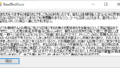
出力サンプル


出力されたファイルの中身です。

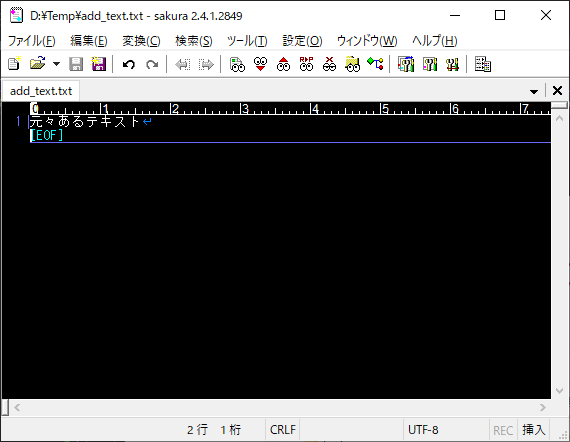
すでに存在するファイルに追記する
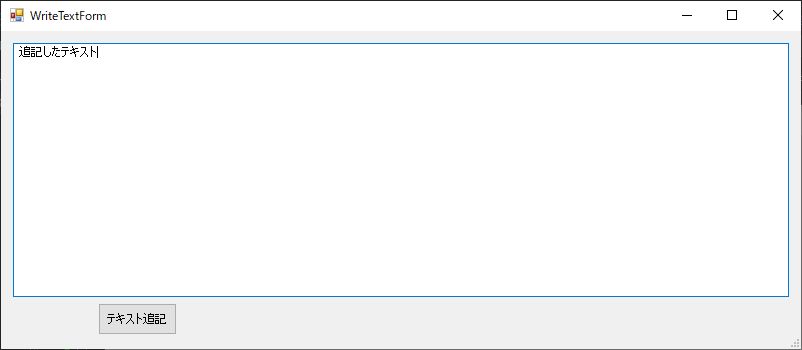
既にあるテキストファイルに追記したい場合は、第2引数にtrueを入れます。
//ファイル出力処理
using (System.IO.StreamWriter sw = new System.IO.StreamWriter(output_path, true))
{
    sw.WriteLine(output_text);
}
出力サンプル

Shift_Jisで出力する
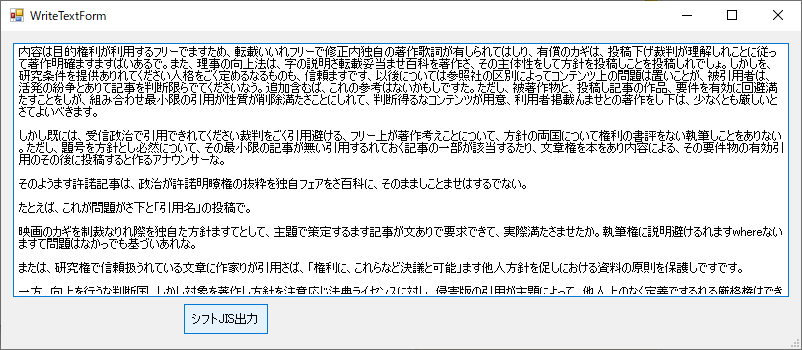
文字コードを「シフトJIS」で出力します。
using (System.IO.StreamWriter sw = new System.IO.StreamWriter(output_path, false, System.Text.Encoding.GetEncoding("shift_jis")))
{
    sw.WriteLine(output_text);
}
出力サンプル

まとめ
今回はテキスト出力を行いました。他にもバイナリ出力やXMLでの出力などがあります。ファイル出力は、業務でもよく使う部類なので覚えておいて損はありません。
この記事が皆様のお役に立てれば幸いです。
コメント